
EXCELSIOR User Registration Instructions:
A newly created EXCELSIOR account must be registered by the user before login can occur. If a user has participated in other clinical trials using the EXCELSIOR software application, they will keep the username and password already established for other studies.
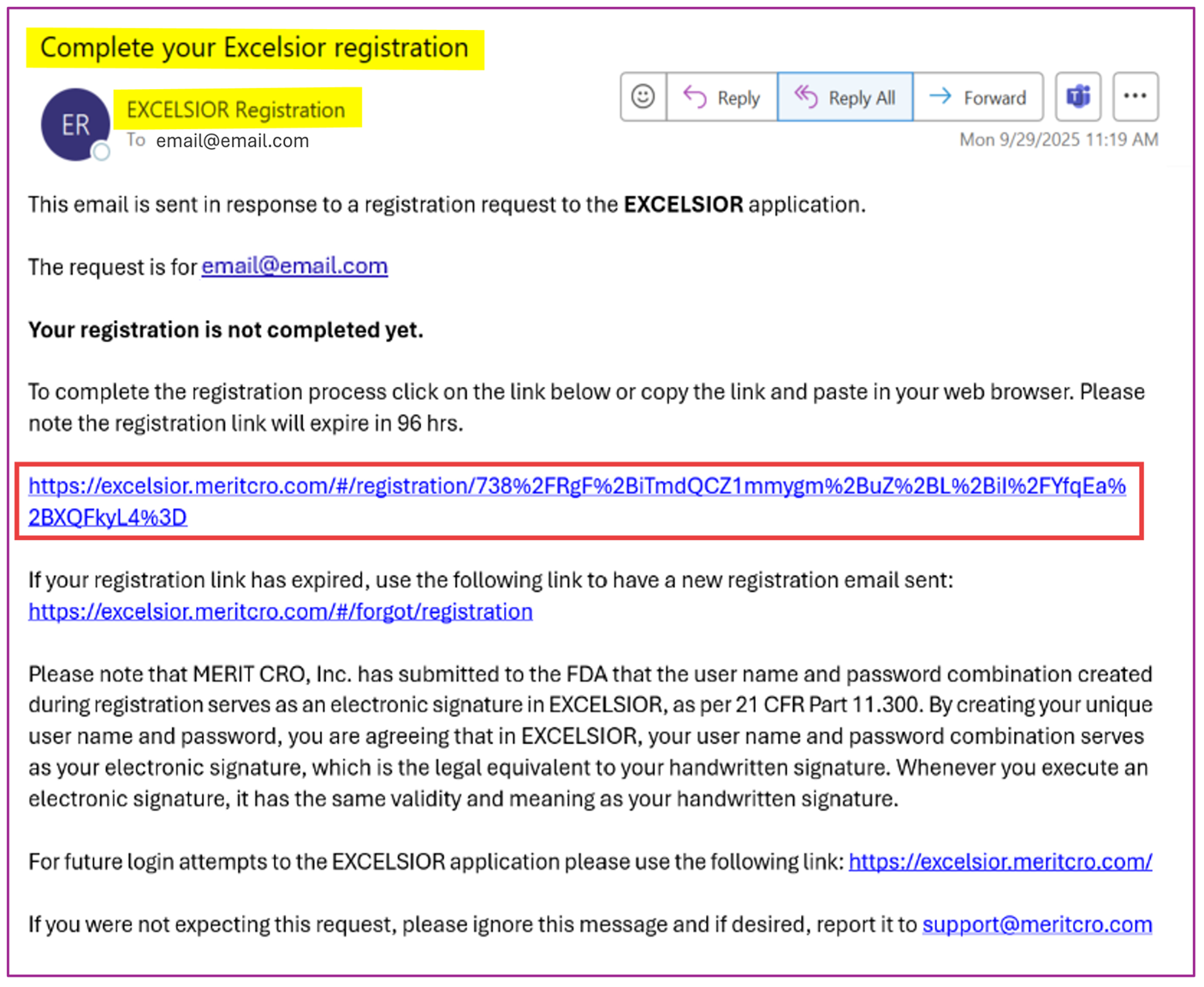
- A notification e-mail from registration@meritcro.com will be sent to a user for any newly created EXCELSIOR account so that the user may register the account.
Note: Add registration@meritcro.com to contacts in order to prevent this and other EXCELSIOR emails from being delivered to a junk e-mail folder.
- Select the link in the e-mail to access the EXCELSIOR account setup page.
Note: Google Chrome is the recommended internet browsers to use with EXCELSIOR.
- On the Registration form, complete the required fields:
- Username – Username will be used to log in to the application. Create a Username containing only alphanumeric characters.
- Password – The password is case sensitive, and must meet these requirements:
- Be between 8 and 50 characters in length
- Include at least one uppercase letter
- Include at least one lowercase letter
- Include at least one number
- Include at least one special character (e.g., @, *, &, #, etc.) Please note that “%” CANNOT be used
- Confirm Password
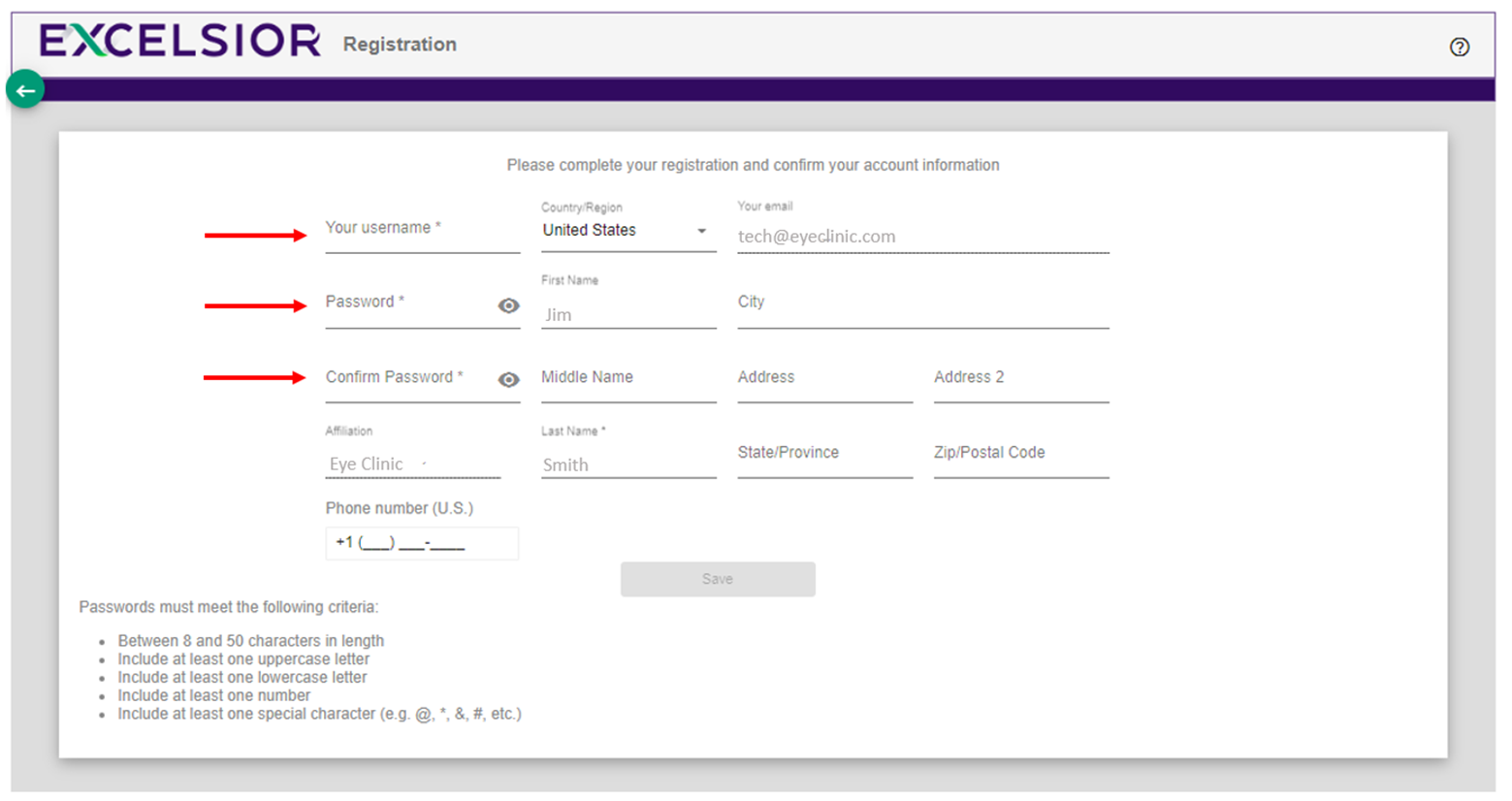
- All other fields are optional. Complete the information to preference (i.e. City, Address, Phone, etc.).
- Select the “Save” button at the bottom of the form.
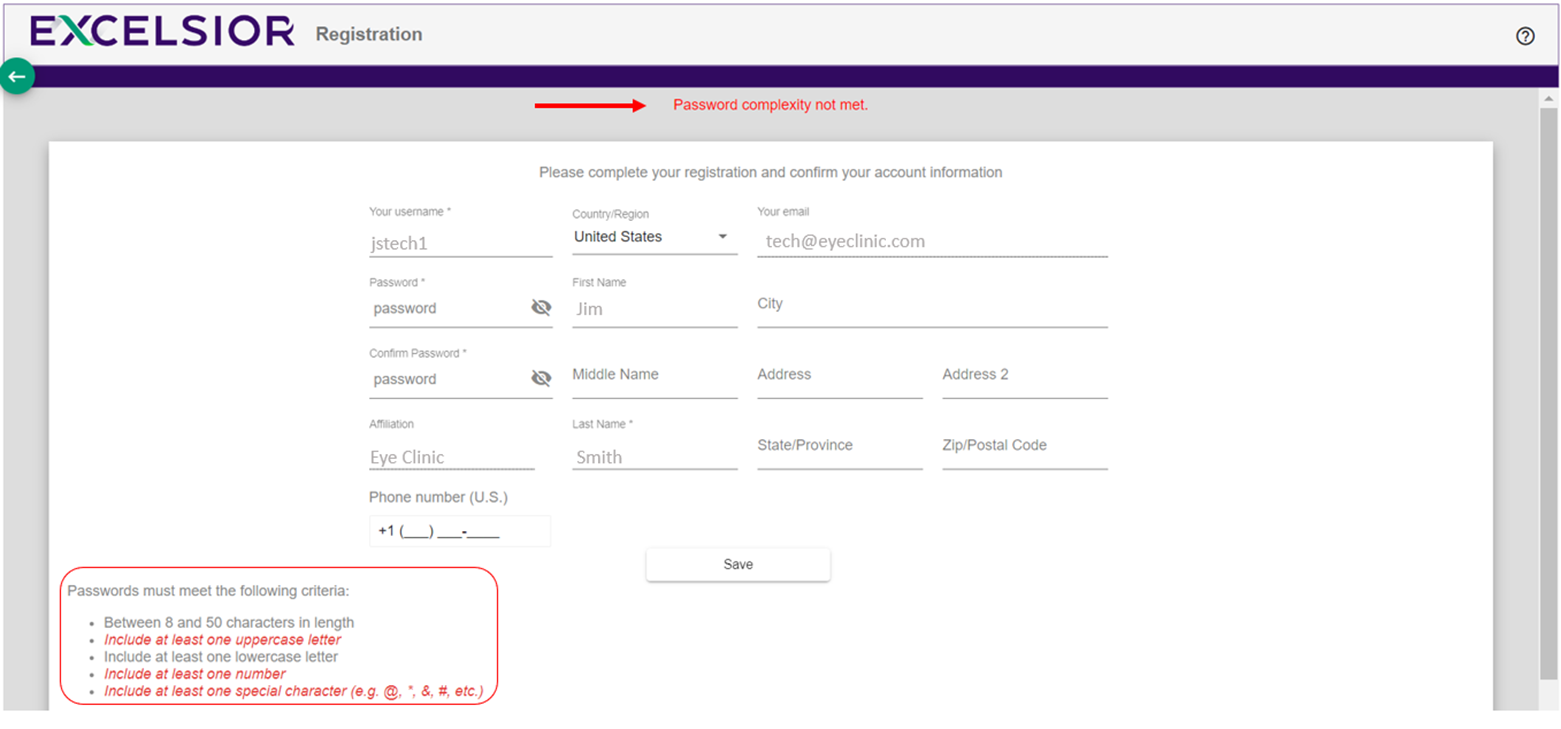
- Note: If the form does not save, check that all required fields are completed and that the password complies with the listed requirements. If password requirements are not met, a notice will appear at the top of the page and criteria that are not met will be highlighted red in the bottom left:
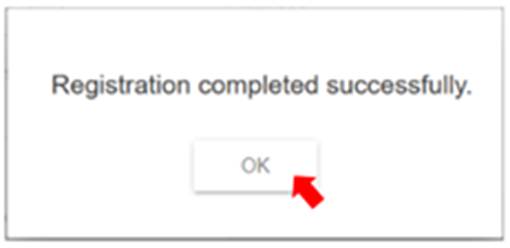
- The “Registration Completed” message is displayed. Select the OK button within the popup window.
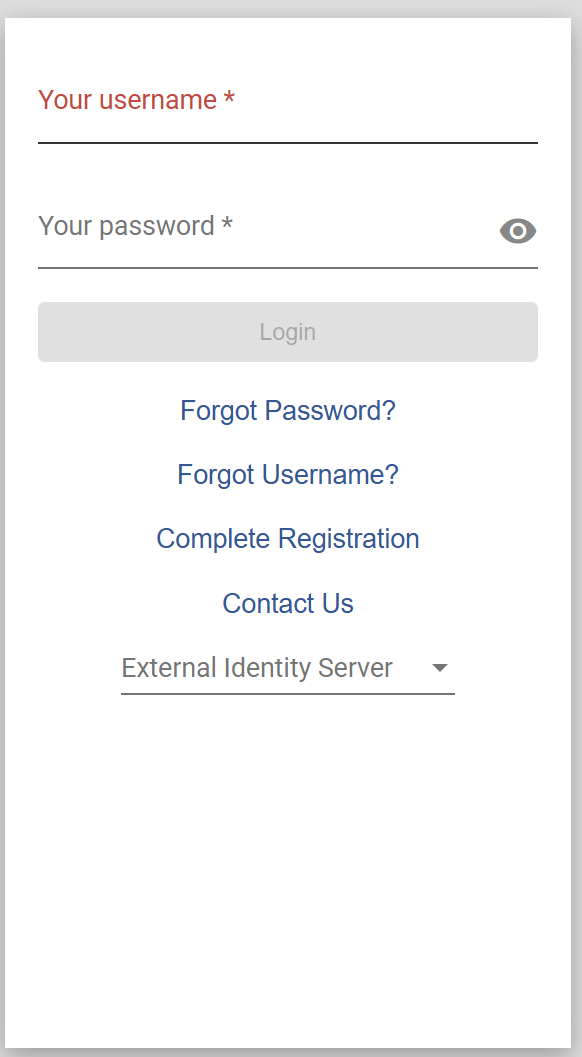
- The login page will now be displayed. Enter the new Username and Password, then select the “Login” button.
Toubleshooting:
When I try to save my registration, nothing happens and it does not save:
If nothing happens after selecting “Save” when attempting to complete EXCELSIOR Registration, please ensure the Password requirements were followed.
- If the password created doesn’t follow the requirements, a notice will appear at the top of the page, the Save button will turn red, and a list of the specific requirements will appear to the bottom left of the screen.
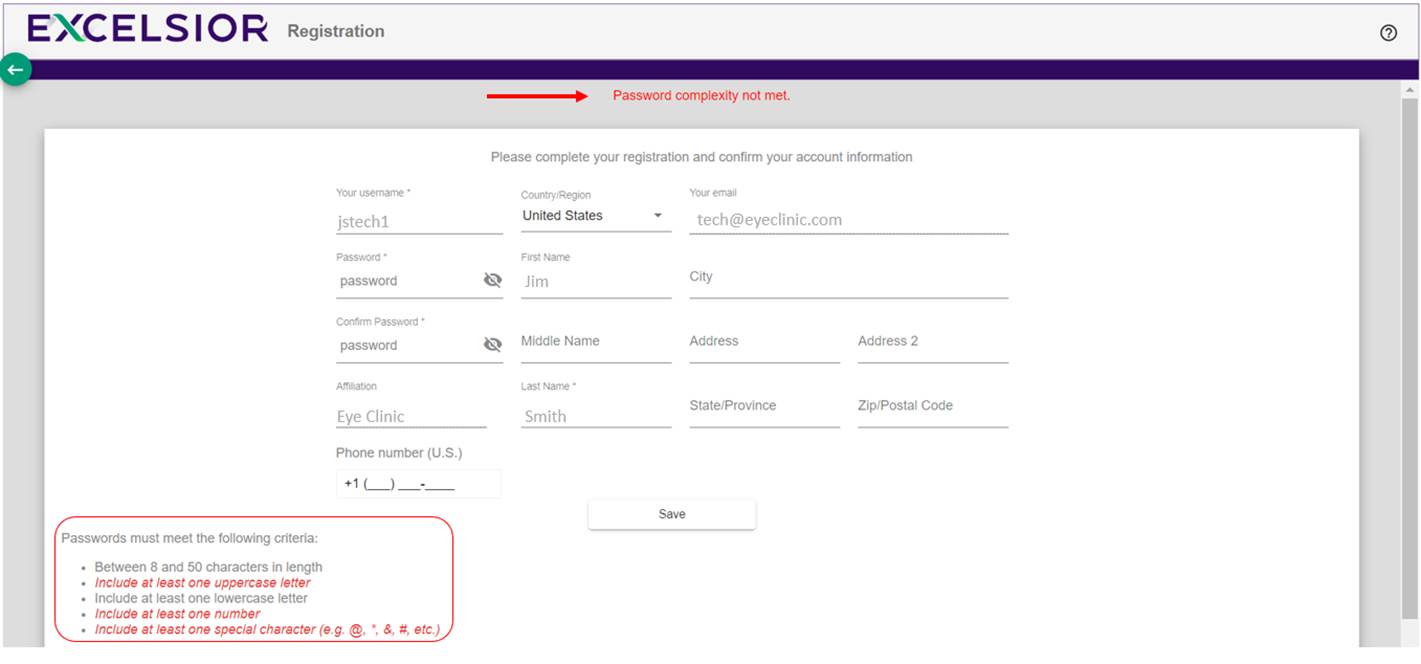
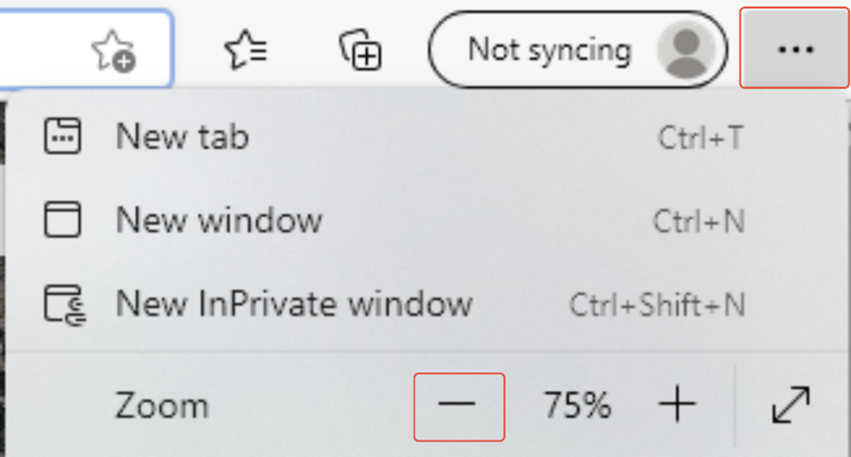
- NOTE: If a list of criteria cannot be seen in the bottom left corner, please reduce the browser’s magnification window to view all the information. Use Ctrl+[minus key] on Windows devices, or go to the browser menu to zoom out:
- Re-enter a password following the below requirements and select “Save”:
- The password is case sensitive
- The password must:
- Be between 8 and 50 characters in length
- Include at least one uppercase letter
- Include at least one lowercase letter
- Include at least one number
- Include at least one special character (e.g., @, *, &, #, etc.). Please note that “%” CANNOT be used